
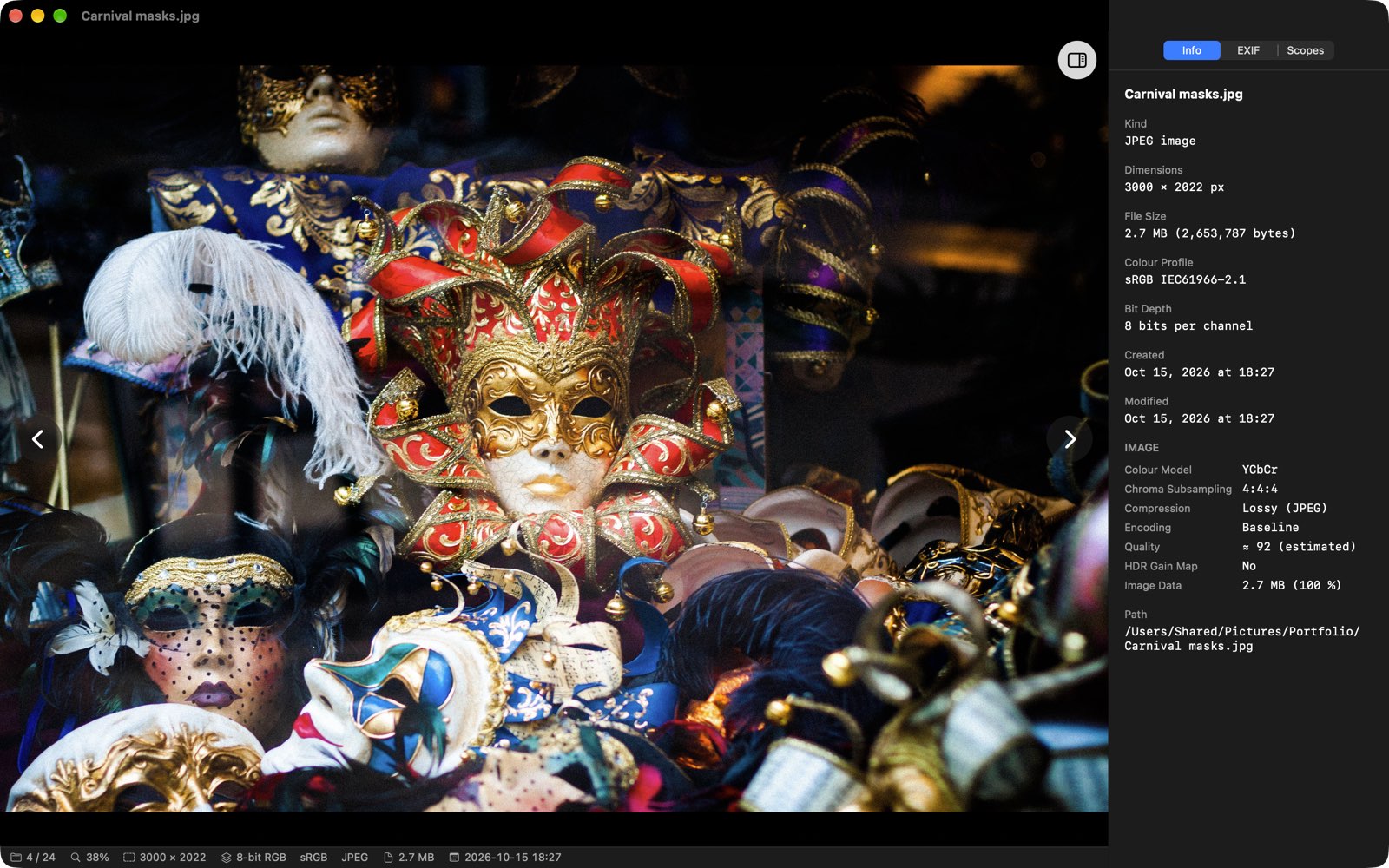
XCViewer is a free image viewer for photographers and colourists. It opens images and LUTs from Finder at once, shows HDR photos in full brightness, compares two images, shows scopes and shows what is inside a file. It is simple to use and almost every action has a key.

Double-click an image in Finder and XCViewer shows it sharp, with no empty window, folder picker or animation first. The rest of the folder is listed after the image is on screen, so the next image is one key away.
The screenshot at the top of this page shows the viewer with the status bar and the Info panel.
On a screen with EDR headroom (XDR and HDR displays, and most Mac screens below full brightness) XCViewer shows HDR images in extended dynamic range: gain-map HEIC and JPEG from iPhones and cameras, PQ and HLG HEIF/AVIF, OpenEXR, Radiance HDR and float TIFF. When the image is brighter than the screen can show, it is tone-mapped to the current headroom. Turn off View > Show HDR to see the SDR version.
Colours are managed: each image is converted from its own colour profile, so SDR colours match Preview.
The gallery shows all images in a folder, in a grid or masonry layout, with sort, search and filters by type and date. The slideshow plays the folder with a slow Ken Burns pan and zoom. Settings > Formats makes XCViewer the default app for each file type you choose.
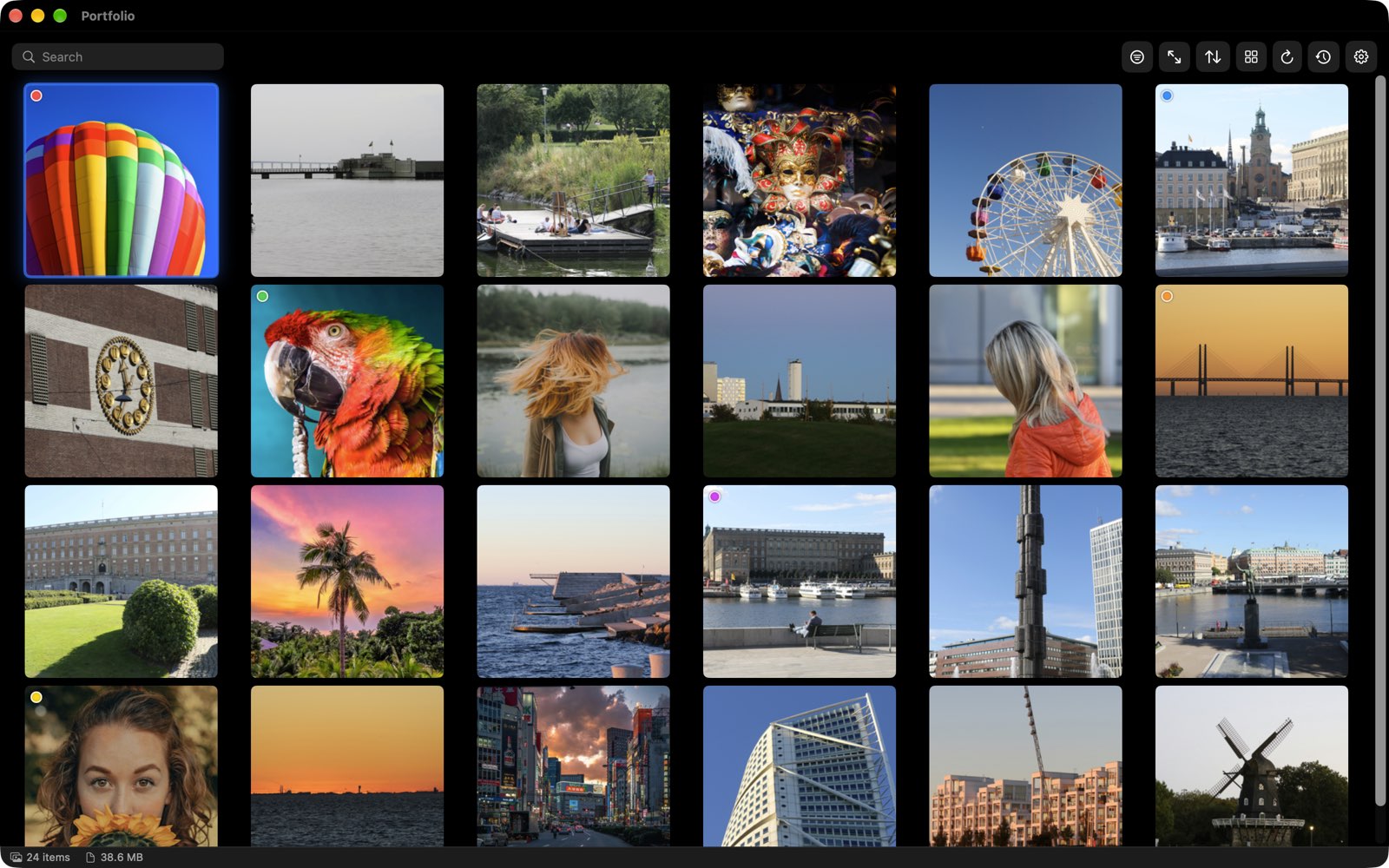
Photos by XCStudio (Unsplash @videolut) and Unsplash photographers.
Press I to open the side panel. It stays open while you go from image to image, and you can drag its edge to make it wider.
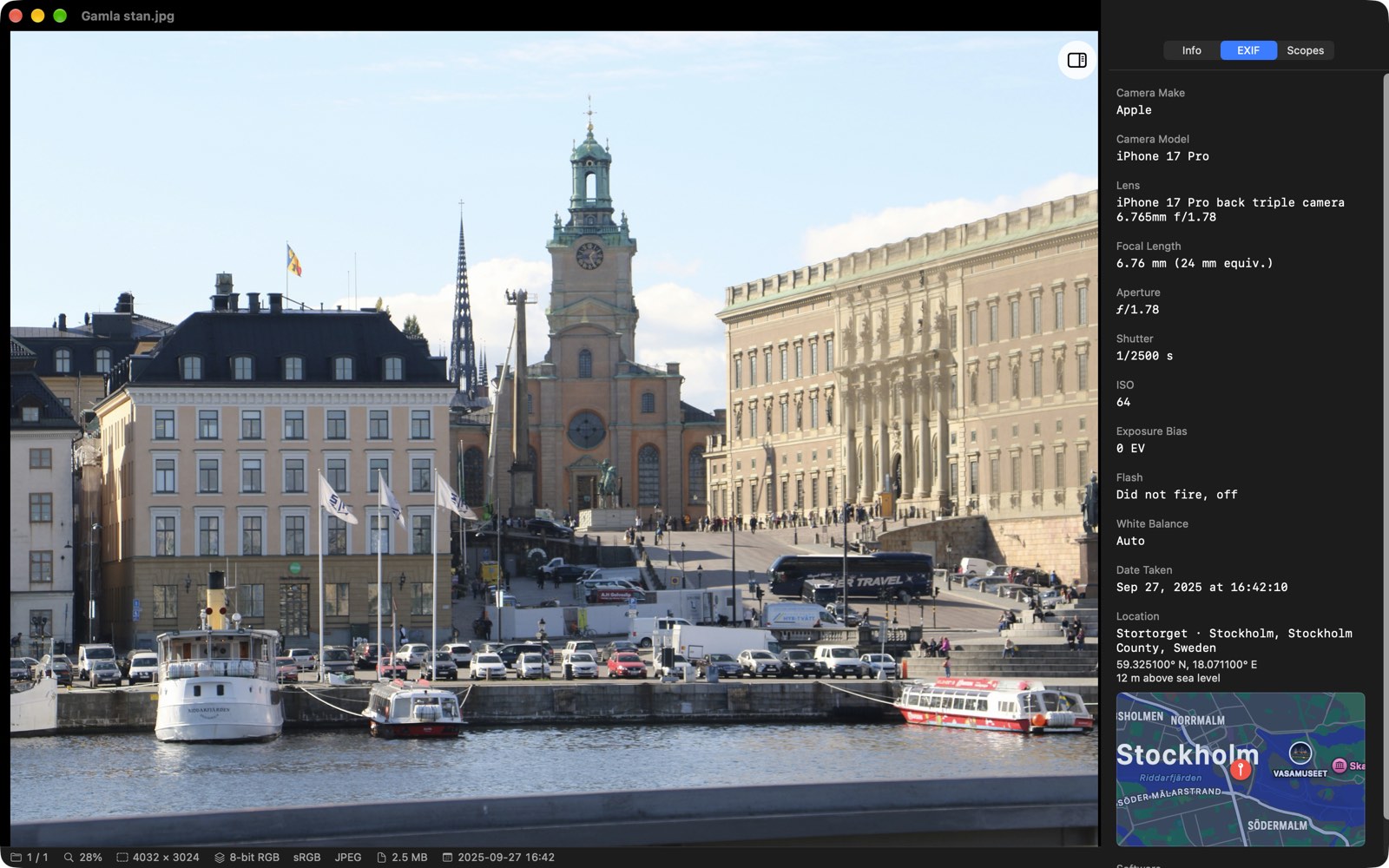
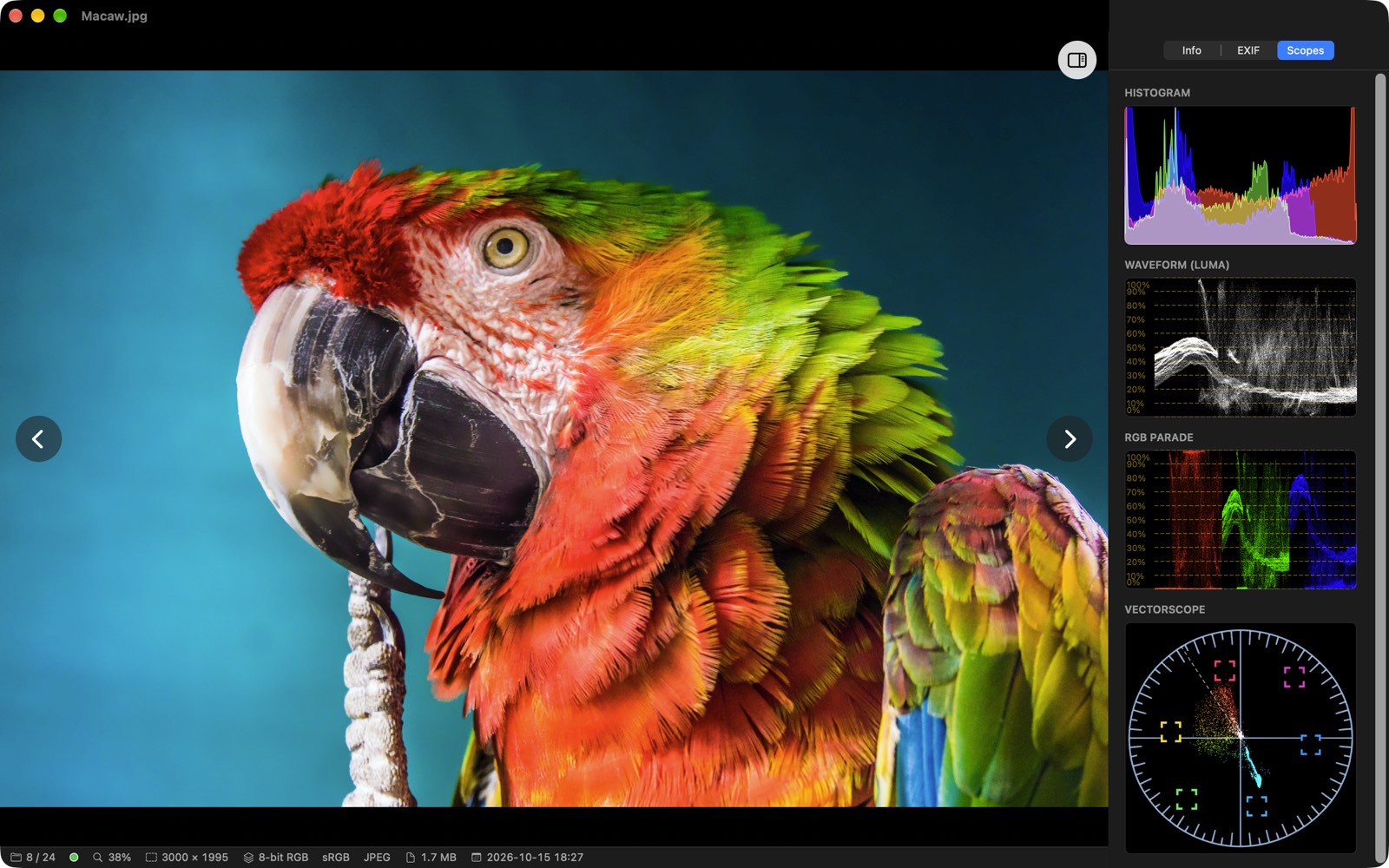
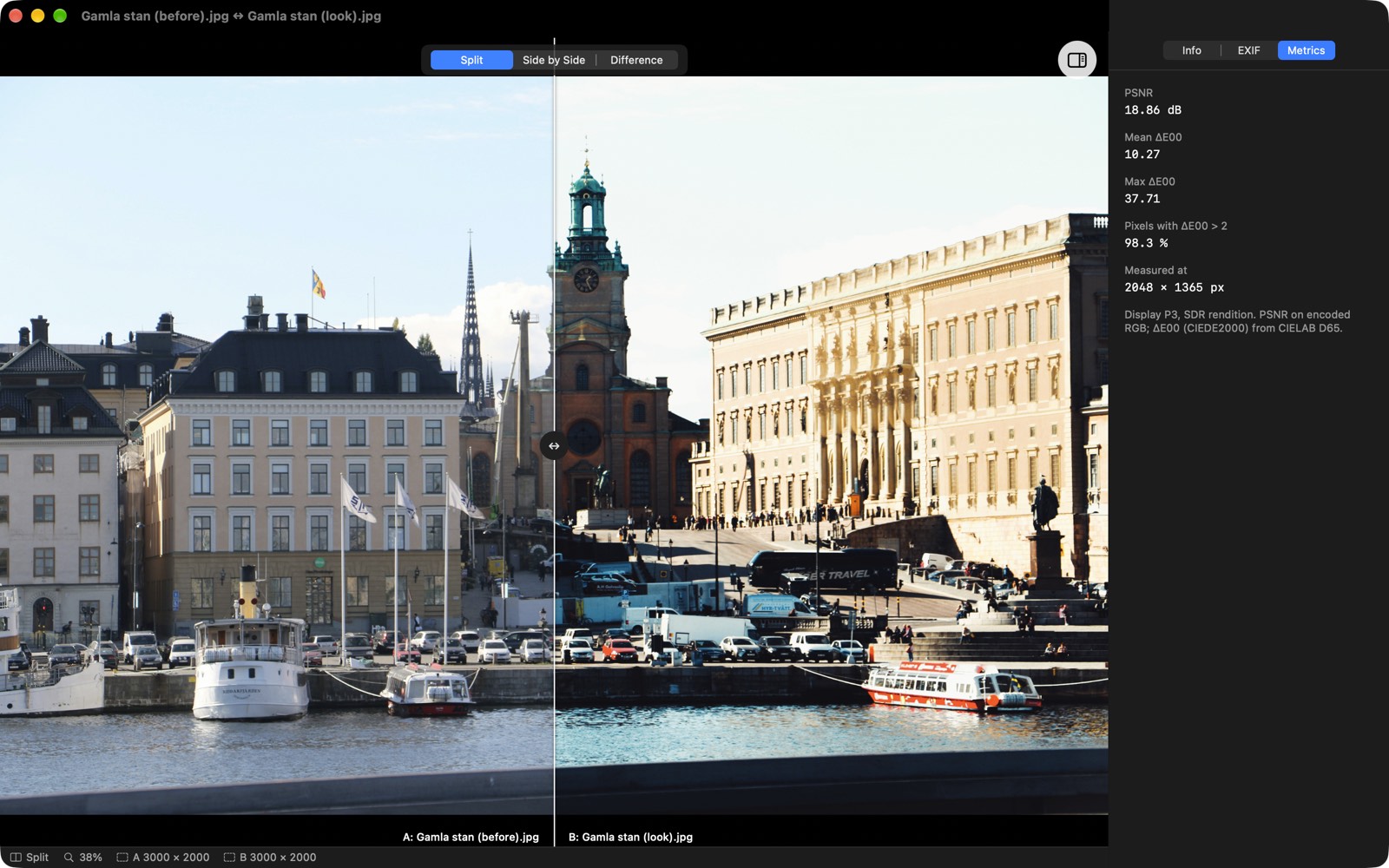
Select two images in Finder and open them with XCViewer or choose Quick Actions > Compare in XCViewer, or select two thumbnails in the gallery and press Cmd+K.
Open a .cube, .3dl, .csp, .look, .spi3d or other LUT that CocoaLUT reads, and XCViewer applies it to a preview photo with a before/after split and a ColorChecker band. You can choose your own preview image in Settings > LUT Preview. A folder of LUTs opens as a LUT gallery.
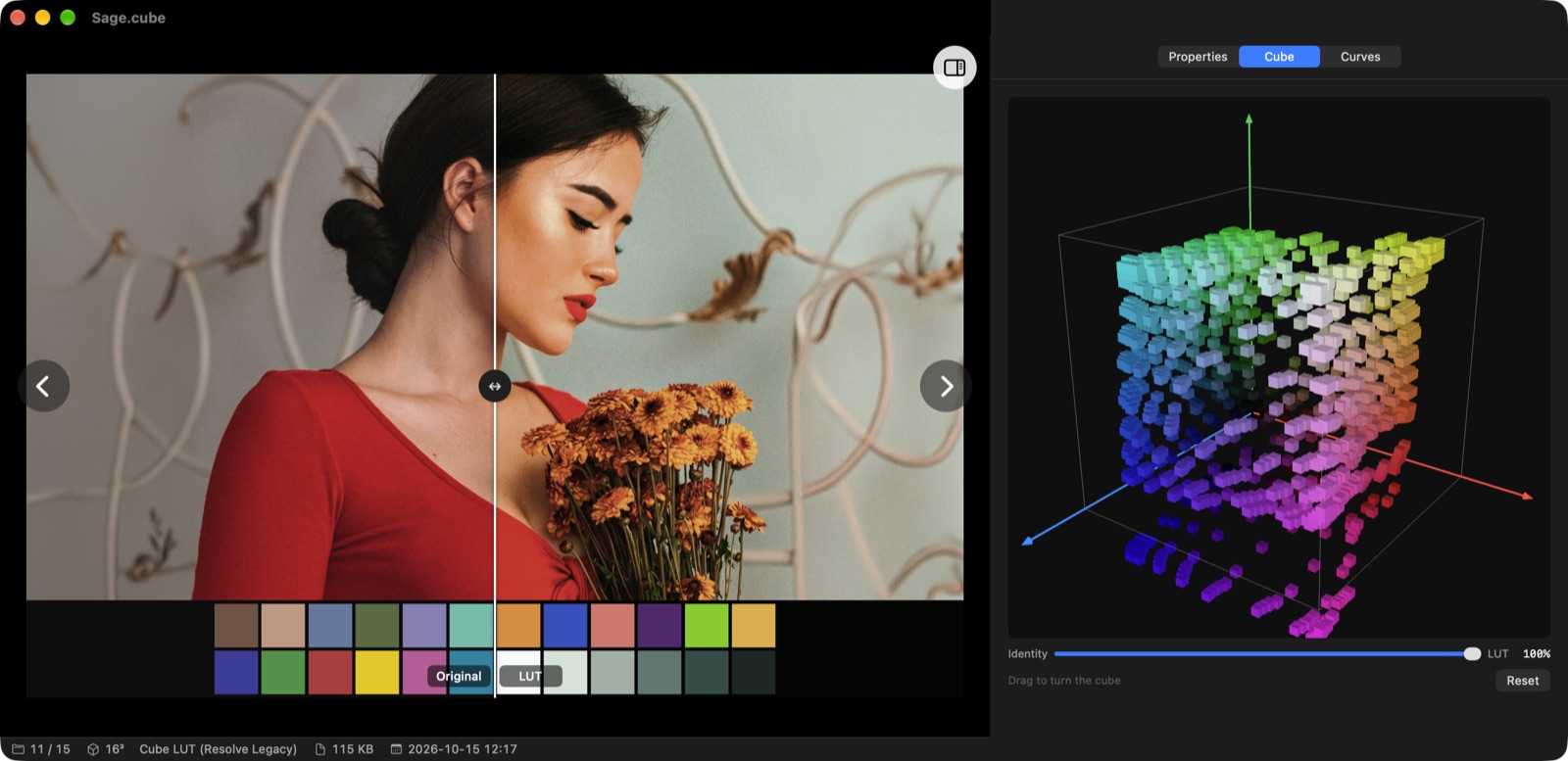
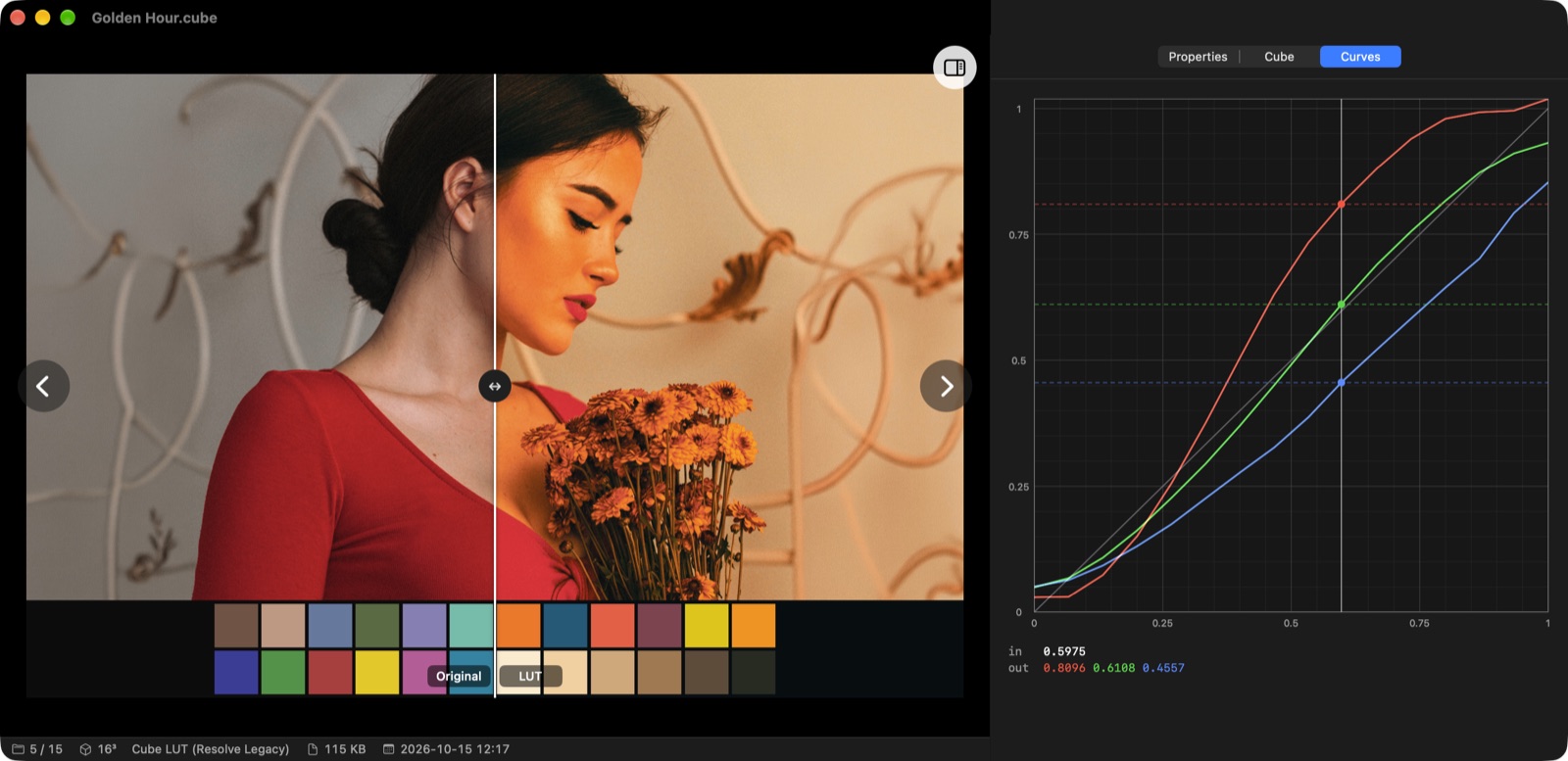
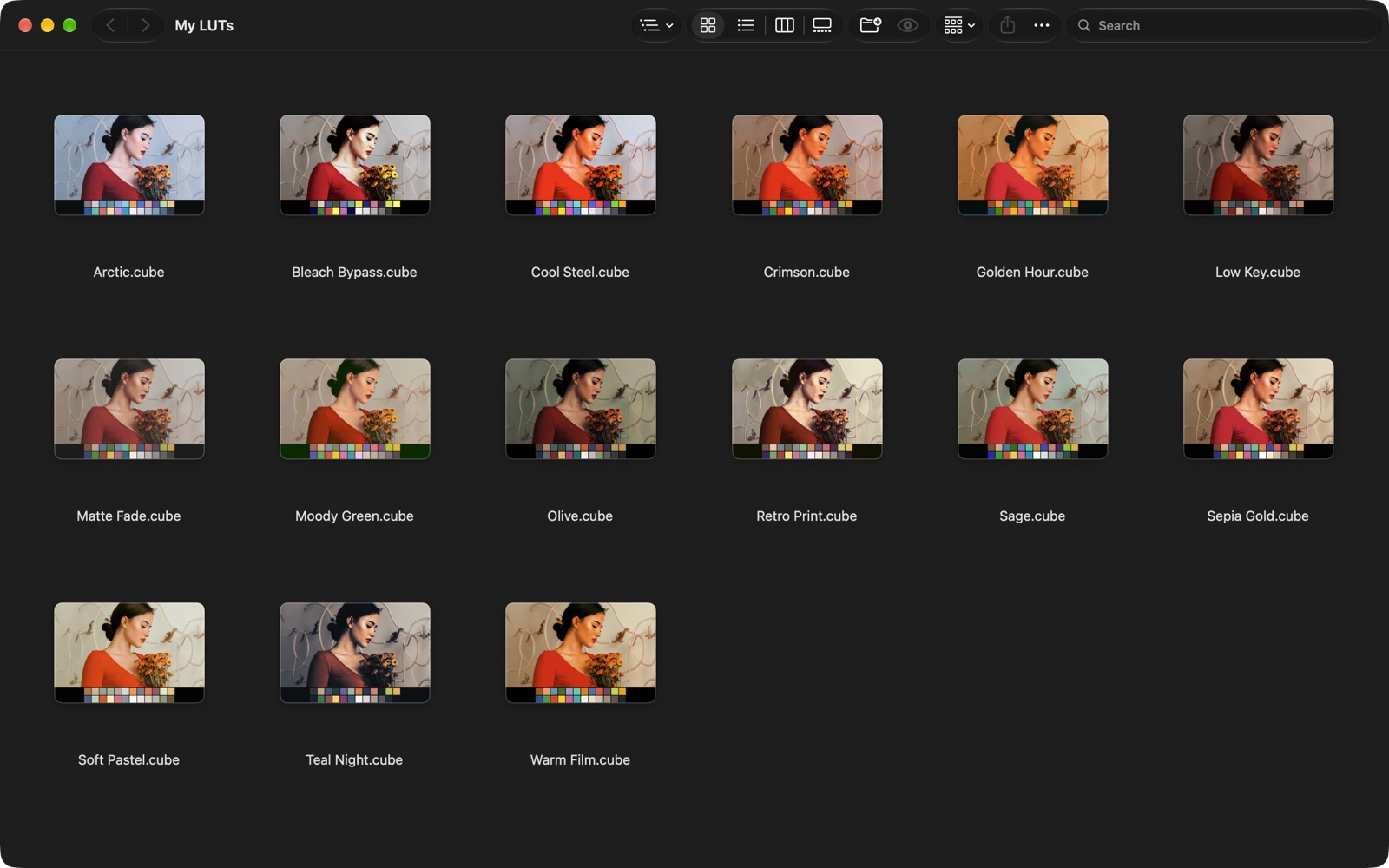
XCViewer also draws LUT thumbnails in Finder and Quick Look previews, so a folder of LUTs shows what each one does.
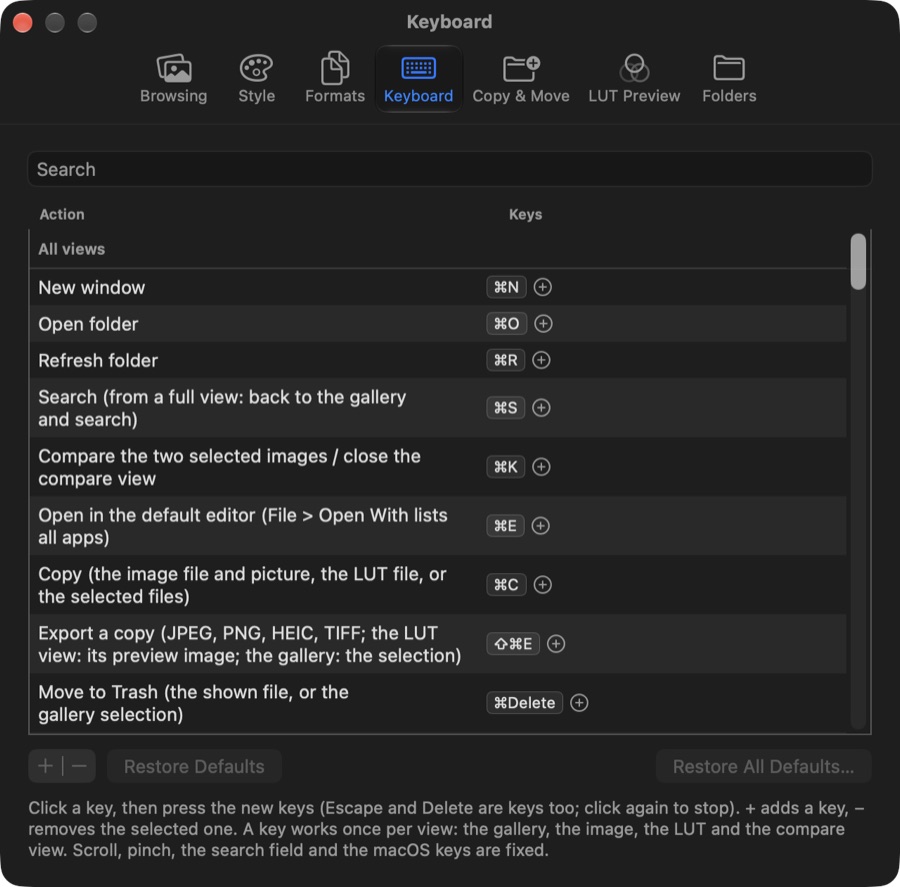
Almost every action has a key, and every key can be changed in Settings > Keyboard: search for an action, click its key and press the new keys.
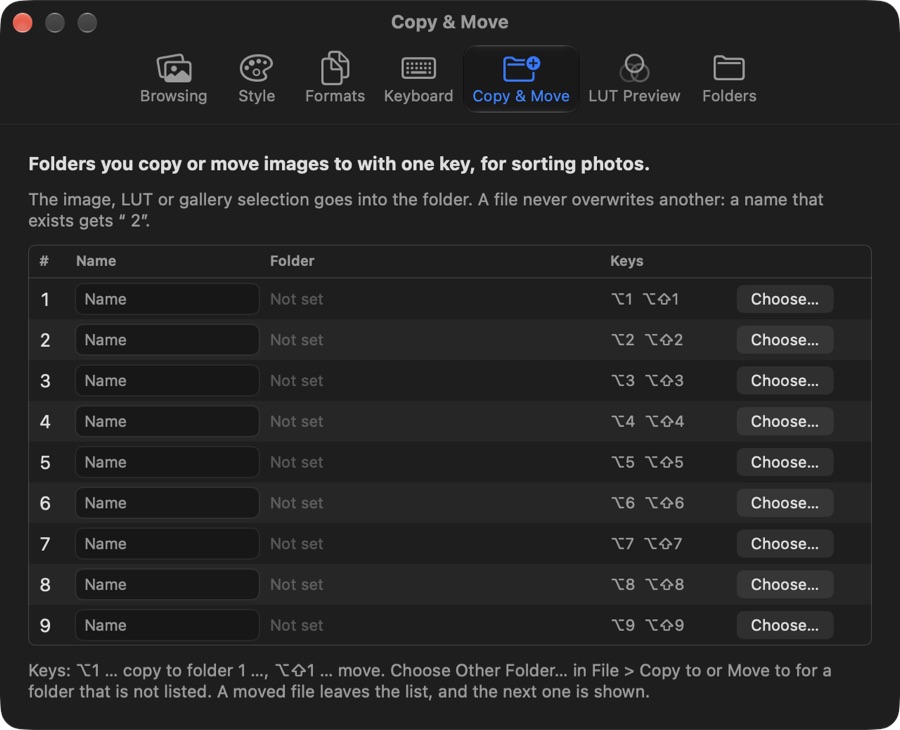
Settings has seven tabs: Browsing, Style (black, grey or white background, checkerboard), Formats (make XCViewer the default app per file type), Keyboard, Copy & Move, LUT Preview and Folders. Every setting applies at once.
Images: JPEG, PNG, GIF, HEIC, HEIF, TIFF, BMP, WebP, AVIF, OpenEXR, Radiance HDR, PSD, TGA, JPEG 2000, MPO and ICNS. RAW files (DNG, CR2, CR3, ARW, NEF, RAF and more) open through macOS, depending on the camera.
LUTs: .cube, .3dl, .csp and the other text LUT formats that CocoaLUT reads.
Requires: macOS 14 Sonoma or later. XCViewer is free.
Full details: XCViewer privacy policy.
Questions, bugs or ideas: write to us with the contact form. Tell us your macOS version and, for a file that does not open, its format.
The Compare Quick Action is not in Finder? Open XCViewer once. Then turn on Compare in XCViewer in System Settings > General > Login Items & Extensions > Finder, or in Finder's right-click > Quick Actions > Customize. It shows only when exactly two images are selected.
XCViewer asks for a folder? The Mac App Store requires apps to ask before they read a folder. Allow the folder once and XCViewer remembers it. Settings > Folders lists and removes the folders you allowed.